
- SureCookie Installation Guide
- Installing SureCookie Pro
- Updating SureCookie
- How to Set Up SureCookie: Onboarding Wizard Guide
- SureCookie Dashboard Overview
- Connecting Your Site to SureCookie (Scanner Setup)
- Using SureCookie on Multiple Sites
- Uninstalling SureCookie & Data Cleanup
- Preferences Settings (Menu, Branding, Analytics)
- Re-Consent
- Understanding SureCookie Logs
- How to Set Up Geographic Targeting
- Resource Blocking
- Setting Up Google Consent Mode v2
- Consent Models Explained (Opt-in vs Opt-out)
- Exporting Consent Logs (PDF Proof + CSV)
- Consent & Data Settings (Duration, Retention, Renew)
- Consent Forwarding Across a Multisite Network
- Resource / Script Blocking (Add Embeds + Fixes)
Settings or Cookie Categories Not Saving
When you change a SureCookie setting or a cookie category and it doesn’t stick, it’s usually one of a few things: a required field is blocking the save, your account lacks permission, a security plugin is blocking the request, or a cache is showing you old values.
SureCookie stores your settings and categories in your WordPress database and saves them through the WordPress REST API when you click Save. A successful save shows a Settings saved! message; a failure shows Save failed!. This article works through the causes from the most common down.
Confirm Whether the Save Failed
First, tell a failed save apart from a display issue.
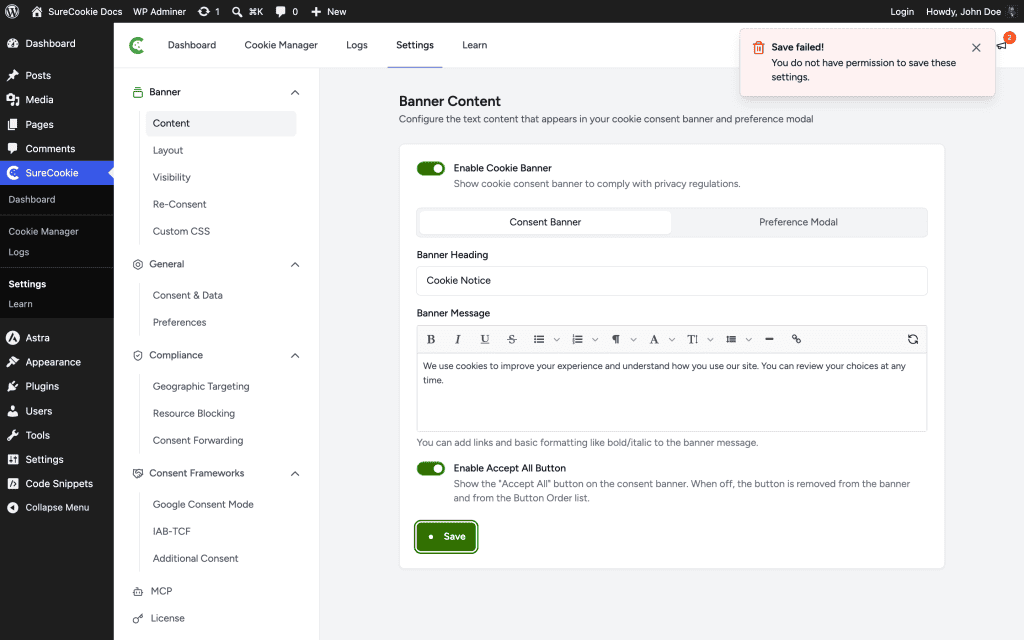
- If you saw Save failed!, the request reached the server but didn’t complete. Work through the sections below.
- If you saw Settings saved! but the values still look old, the save worked and a cache is showing stale data. Jump to Clear Your Caches.
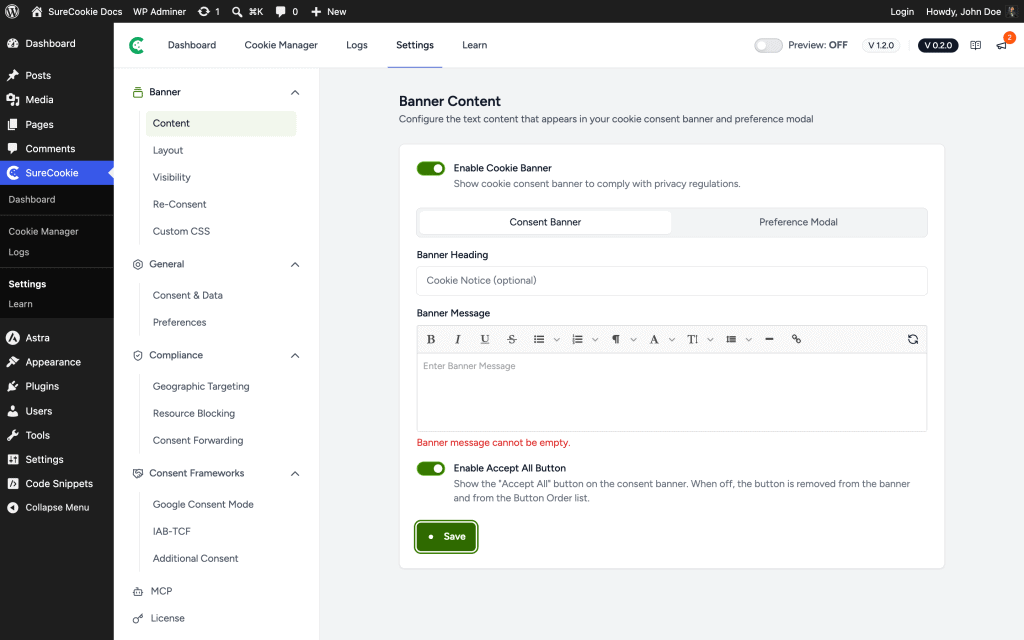
Check for a Validation Error
Some fields are required, and leaving one empty blocks the entire save.
- The Banner Message and the Preference Modal Description can’t be empty. If either is blank, SureCookie shows an inline error such as Banner message cannot be empty and the save doesn’t go through.
- Fix the flagged field, then click Save again.
Make Sure You Have Permission
Saving SureCookie settings requires an administrator account. Editors and other roles can open some screens but can’t save changes. Sign in as an administrator, or ask one to make the change for you.
Unblock the REST API
When you click Save, SureCookie sends your changes to the WordPress REST API at /wp-json/surecookie/v1/admin/settings. If a security plugin, firewall, or server rule blocks REST requests, the save fails with Save failed!.
- Temporarily disable security or firewall plugins (for example Wordfence or iThemes Security), then save again.
- If that fixes it, re-enable the plugin and add an exception for the
/wp-json/path. - If it persists, ask your host whether a server firewall or security rule is blocking REST requests.
Clear Your Caches
A page cache, a persistent object cache (Redis or Memcached), or a CDN can keep serving your old settings even after a successful save.
- Clear your WordPress page cache and flush any object cache.
- Purge your CDN.
- Reload the settings screen in a private window to confirm the new values.
Refresh a Stale Session
If you left the screen open for a long time, or signed out in another tab, the security token behind the save can expire and the save can fail quietly. Reload the page and try saving again.
Rule Out a Plugin or Theme Conflict
A JavaScript error from another plugin can stop the Save button from working.
- Open your browser’s developer console (press F12) and watch for errors when you click Save.
- Temporarily switch to a default theme, or pause other plugins one at a time, to find the conflict.
Cookie Categories Won’t Save
Cookie categories are saved together with your settings, so every cause above applies to them too. A few category-specific points:
- A category must have a name. A blank name blocks the save.
- Built-in categories such as Essential can’t be deleted, and their Required status can’t be changed.
- Manage categories under SureCookie → Cookie Manager → All Cookies → Manage Categories.
When to Contact Support
If none of the above works, send us the details so we can investigate.
- What you changed, and on which screen.
- Whether you saw Settings saved! or Save failed!.
- Any errors in the browser console when you click Save.
- Your caching, security, and hosting setup.
We don't respond to the article feedback, we use it to improve our support content.