
- SureCookie Installation Guide
- Installing SureCookie Pro
- Updating SureCookie
- How to Set Up SureCookie: Onboarding Wizard Guide
- SureCookie Dashboard Overview
- Connecting Your Site to SureCookie (Scanner Setup)
- Using SureCookie on Multiple Sites
- Uninstalling SureCookie & Data Cleanup
- Preferences Settings (Menu, Branding, Analytics)
- Re-Consent
- Understanding SureCookie Logs
- How to Set Up Geographic Targeting
- Resource Blocking
- Setting Up Google Consent Mode v2
- Consent Models Explained (Opt-in vs Opt-out)
- Exporting Consent Logs (PDF Proof + CSV)
- Consent & Data Settings (Duration, Retention, Renew)
- Consent Forwarding Across a Multisite Network
- Resource / Script Blocking (Add Embeds + Fixes)
Customizing Banner Colors (Custom Colors, WCAG)
You can match the cookie banner to your site’s look. SureCookie ships with ready-made color palettes, and on SureCookie Pro you can set your own brand colors. As you pick custom colors, SureCookie shows a WCAG contrast reading, so your banner text stays readable for everyone.
You’ll find these options at SureCookie → Settings → Banner → Layout, in the Color Palette section.
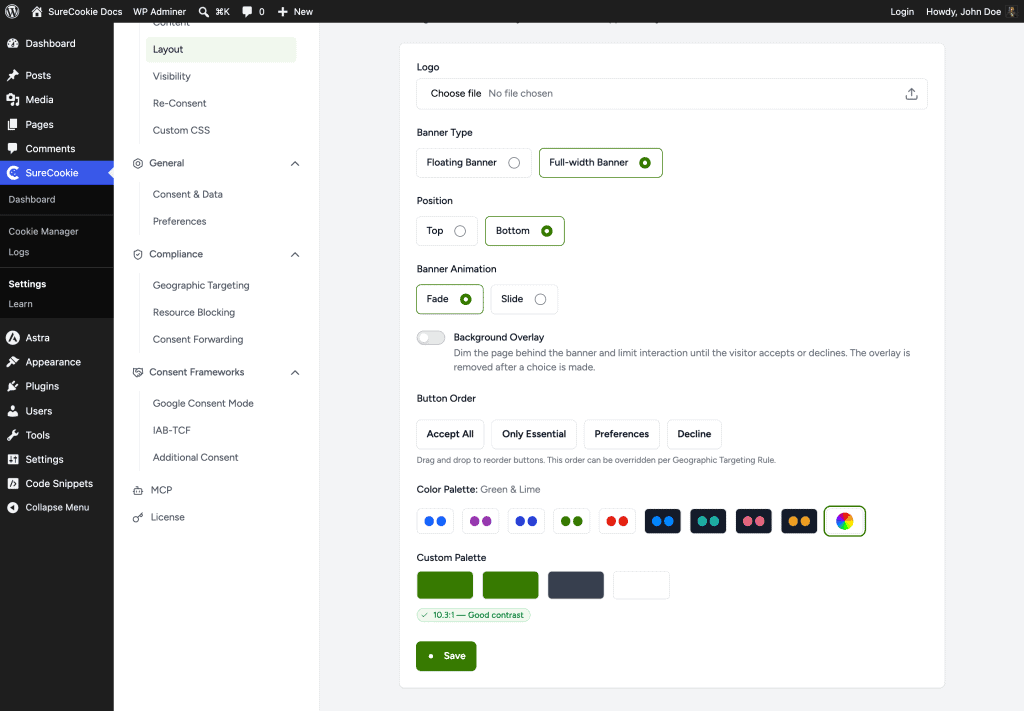
Pick a Color Palette
A preset palette is the quickest way to restyle the banner, and it’s available on all plans.
- Go to SureCookie → Settings → Banner → Layout and scroll to Color Palette.
- Click one of the palette swatches. Each swatch previews its button colors, and the active palette’s name shows next to Color Palette: (for example, Green & Lime).
- Click Save.
Set Custom Brand Colors
Custom colors are a SureCookie Pro feature.
- In the Color Palette row, select the last swatch, the multicolor Custom option.
- The Custom Palette pickers appear. Set the banner’s colors, buttons, text, and background, to match your brand.
- Click Save.
Keep Your Banner Accessible
Readable text isn’t just good design; it’s part of accessibility compliance. SureCookie helps you get it right as you choose custom colors.
- Below the custom pickers, SureCookie shows a contrast ratio (for example, 10.3:1) with an at-a-glance verdict such as Good contrast.
- This follows WCAG contrast guidance. As a rule of thumb, aim for at least 4.5:1 for normal text and 3:1 for large text.
- If the reading flags low contrast, adjust your text color or background until it passes. A comfortably high ratio keeps your banner easy to read for everyone.
Tips
- Give your primary action (such as Accept All) the most prominent color so it stands out.
- Preview your colors before saving. Toggle Preview in the top bar to see the banner live on your admin screens.
- For styling beyond colors, use SureCookie → Settings → Banner → Custom CSS.
Troubleshooting
- Colors didn’t change on the site – Make sure you clicked Save, then clear your page and CDN caches and reload.
- The contrast reading is low – Increase the difference between your text and background, for example darker text on a lighter background, until it passes.
- There’s no Custom Palette option – Custom colors are a SureCookie Pro feature. The free plugin offers the preset palettes.
Was this doc helpful?
What went wrong?
We don't respond to the article feedback, we use it to improve our support content.
Table of Contents