
- SureCookie Installation Guide
- Installing SureCookie Pro
- Updating SureCookie
- How to Set Up SureCookie: Onboarding Wizard Guide
- SureCookie Dashboard Overview
- Connecting Your Site to SureCookie (Scanner Setup)
- Using SureCookie on Multiple Sites
- Uninstalling SureCookie & Data Cleanup
- Preferences Settings (Menu, Branding, Analytics)
- Re-Consent
- Understanding SureCookie Logs
- How to Set Up Geographic Targeting
- Resource Blocking
- Setting Up Google Consent Mode v2
- Consent Models Explained (Opt-in vs Opt-out)
- Exporting Consent Logs (PDF Proof + CSV)
- Consent & Data Settings (Duration, Retention, Renew)
- Consent Forwarding Across a Multisite Network
- Resource / Script Blocking (Add Embeds + Fixes)
Banner Not Appearing: Troubleshooting
Your consent banner shows to visitors who haven’t made a choice yet. If it isn’t appearing, it’s almost always one of a few things: the banner is turned off, you have already responded on this browser, a cache is serving an old copy of the page, or a visibility or region rule is hiding it.
Work through the checks below from the top. The first two resolve most reports, and none of this affects your stored consent logs or script blocking.
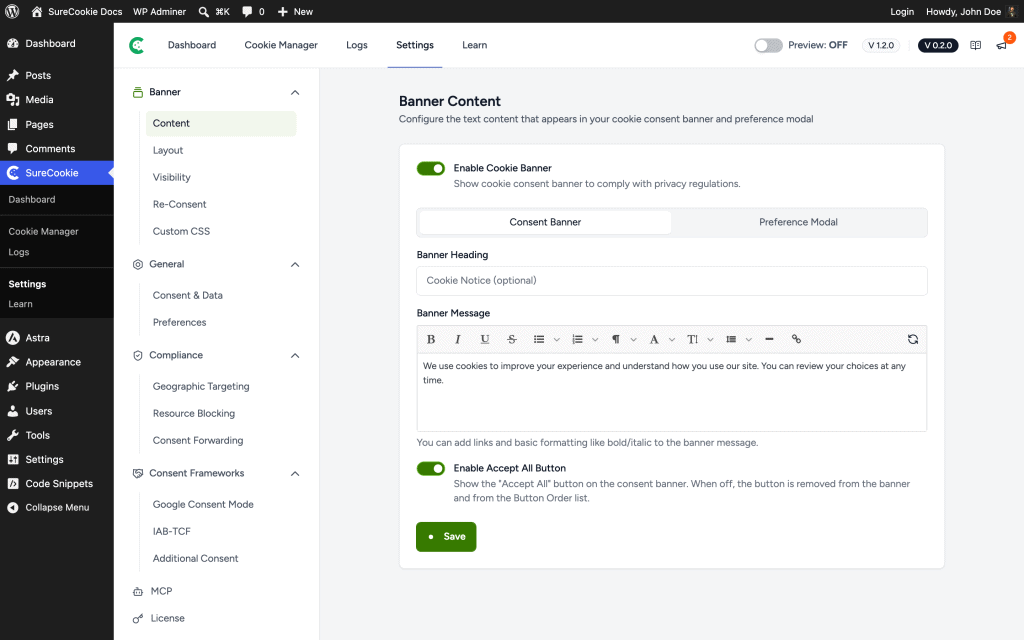
Make Sure the Banner Is Turned On
The Enable Cookie Banner toggle controls whether the banner shows at all.
- Go to SureCookie → Banner → Content.
- Confirm Enable Cookie Banner is on.
- If you changed it, save your settings.
Check Whether You’ve Already Responded
The banner only shows until a visitor makes a choice. Once you accept or decline, SureCookie remembers your decision (in a cookie named surecookie_user_consent) for up to a year, so the banner stays hidden on later visits from the same browser.
To view the banner as a first-time visitor:
- Open your site in a private or incognito window, or
- Clear your browser’s cookies and site data for your domain, then reload.
Tip: To re-show the banner for every visitor at once, for example after updating your cookie policy, use Re-request Consent under SureCookie → Settings → General → Consent & Data.
Clear Your Caches
A page cache, CDN, or optimization plugin can serve a stored copy of your page that was generated without the banner.
- Clear your WordPress page cache.
- Purge your CDN, such as Cloudflare.
- Clear your browser cache.
- Reload the page in a private window.
Check Your Visibility Rules
Visibility control is a SureCookie Pro feature. It can hide the banner on selected pages, posts, or archives, or for specific user roles. If a rule matches the page you’re viewing, the banner is hidden on purpose.
- Go to SureCookie → Banner → Visibility.
- Review your rules and confirm the page you’re testing isn’t excluded.
Check Geographic Targeting
Geographic Targeting feature shows the banner only to visitors in the regions you choose. If you’re browsing from a region you haven’t targeted, the banner won’t appear.
Confirm your own location is included in the targeted regions, or test from one of the regions you target.
Rule Out a Script Conflict
The banner is rendered by a small script on the front end. If that script fails to load, the banner can’t appear.
- Open your browser’s developer console (press F12) and look for JavaScript errors on the page.
- If you use a performance or optimization plugin, temporarily turn off JavaScript minification, combining, and deferral, then retest. These features can break the banner script.
- Test with a default theme, or deactivate other plugins one at a time, to find a conflict.
Still Not Showing?
If the banner is still missing after these checks, contact support with the details so we can investigate.
- Your site URL, and whether it’s a live or staging site.
- Whether you tested in a private or incognito window.
- Your caching and optimization setup.
- Any JavaScript errors from the browser console.
We don't respond to the article feedback, we use it to improve our support content.