
- SureCookie Installation Guide
- Installing SureCookie Pro
- Updating SureCookie
- How to Set Up SureCookie: Onboarding Wizard Guide
- SureCookie Dashboard Overview
- Connecting Your Site to SureCookie (Scanner Setup)
- Using SureCookie on Multiple Sites
- Uninstalling SureCookie & Data Cleanup
- Preferences Settings (Menu, Branding, Analytics)
- Re-Consent
- Understanding SureCookie Logs
- How to Set Up Geographic Targeting
- Resource Blocking
- Setting Up Google Consent Mode v2
- Consent Models Explained (Opt-in vs Opt-out)
- Exporting Consent Logs (PDF Proof + CSV)
- Consent & Data Settings (Duration, Retention, Renew)
- Consent Forwarding Across a Multisite Network
- Resource / Script Blocking (Add Embeds + Fixes)
- Is SureCookie GDPR Compliant? (Overview)
- CCPA / CPRA Compliance with SureCookie
Consent & Data Settings (Duration, Retention, Renew)
The Consent & Data screen controls two things: how long a visitor’s consent stays valid before you ask again, and how their consent records are stored. It’s also where you re-request consent from everyone after a change to your cookie policy.
Find it at SureCookie → Settings → General → Consent & Data.
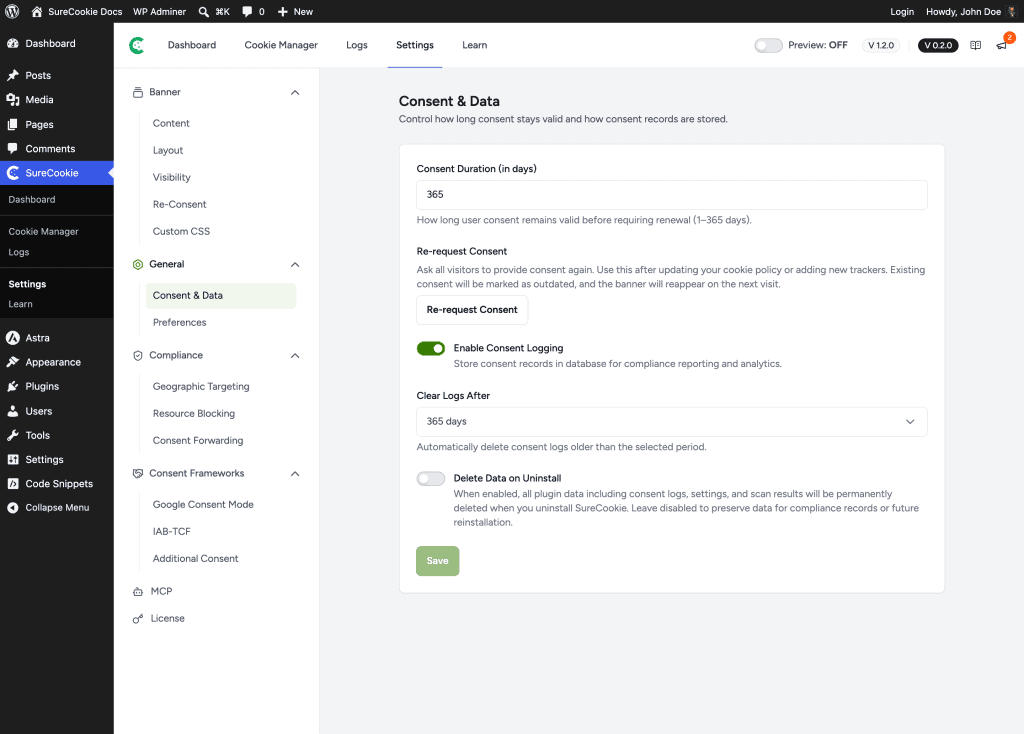
Consent Duration
Consent Duration (in days) sets how long a visitor’s choice remains valid before the banner asks them again.
- The range is 1 to 365 days. The default is 365.
- A shorter duration re-asks more often, keeping consent fresh. A longer one prompts visitors less frequently.
Enter a number of days and click Save.
Re-request Consent
Re-request Consent asks all visitors to consent again. Use it after updating your cookie policy or adding new trackers, so everyone gets a fresh choice.
Click Re-request Consent. Existing consent is marked as outdated, and the banner reappears for every visitor on their next visit. This doesn’t delete any past records; it only invalidates current consent so it’s collected again.
Enable Consent Logging
Enable Consent Logging stores each consent choice in your WordPress database for compliance reporting and analytics.
- When it’s on, every choice is recorded and available under SureCookie → Logs. See Exporting Consent Logs (PDF Proof + CSV).
- When it’s off, no records are stored.
Clear Logs After (Retention)
Clear Logs After automatically deletes consent logs older than the period you choose. It appears only when consent logging is on.
- Options are 30 days, 60 days, 90 days, 365 days, and Never.
- Pick a period that matches how long you need to retain proof of consent. Never keeps records indefinitely.
Delete Data on Uninstall
Delete Data on Uninstall controls what happens to your SureCookie data if you remove the plugin.
- It’s off by default. Leave it off to preserve your data for compliance records or a future reinstall.
- When it’s on, uninstalling SureCookie permanently deletes all plugin data, including consent logs, settings, and scan results.
Important: Turning this on makes uninstalling irreversible for your consent records. Keep it off unless you’re certain you won’t need the data.
Duration vs Retention vs Re-request
These three are easy to confuse. Here’s what each one does:
| Setting | Controls | What happens |
|---|---|---|
| Consent Duration | How long a visitor’s choice stays valid | The banner asks that visitor again after the set number of days |
| Re-request Consent | Invalidating everyone’s current consent now | The banner reappears for all visitors on their next visit |
| Clear Logs After | How long consent records are kept | Logs older than the selected period are deleted automatically |
Save Your Changes
Adjust the settings you need, then click Save.
Note: Consent duration and log retention are compliance decisions that depend on the laws that apply to you. Confirm the right values with a qualified professional.
Next Steps
To download or export the records these settings govern, see Exporting Consent Logs (PDF Proof + CSV). To understand what visitors are agreeing to, see Consent Models Explained (Opt-in vs Opt-out).
We don't respond to the article feedback, we use it to improve our support content.