
- SureCookie Installation Guide
- Installing SureCookie Pro
- Updating SureCookie
- How to Set Up SureCookie: Onboarding Wizard Guide
- SureCookie Dashboard Overview
- Connecting Your Site to SureCookie (Scanner Setup)
- Using SureCookie on Multiple Sites
- Uninstalling SureCookie & Data Cleanup
- Preferences Settings (Menu, Branding, Analytics)
- Re-Consent
- Understanding SureCookie Logs
- How to Set Up Geographic Targeting
- Resource Blocking
- Setting Up Google Consent Mode v2
- Consent Models Explained (Opt-in vs Opt-out)
- Exporting Consent Logs (PDF Proof + CSV)
- Consent & Data Settings (Duration, Retention, Renew)
- Consent Forwarding Across a Multisite Network
- Resource / Script Blocking (Add Embeds + Fixes)
Fix a Stuck or Failed Cookie Scan
The cookie scanner visits your pages, detects the cookies in use, and saves them to your cookie list so your banner can categorize them correctly. Most scans finish in a few minutes. When one stalls, won’t start, or returns a registration error, it’s almost always because our scanner can’t reach your site or something on your site is blocking the verification request.
This article maps the common symptoms to their likely cause and the fix support uses most. Work through it from the top. The prerequisites below resolve the majority of cases.
You’ll find the scanner at SureCookie → Cookie Manager → Manual. A scan only affects automatic cookie discovery. Your consent banner, script blocking, and consent logging keep working whether or not a scan succeeds.
First, Check These
The scanner runs from our servers, so it has to be able to reach your site over the public internet. Before troubleshooting a specific error, confirm the following:
- Your site is publicly accessible – The scanner can’t reach a site behind HTTP basic auth, a VPN, maintenance mode, or a coming-soon plugin. Disable these while you scan.
- Your site isn’t on localhost or a private network – Local addresses (
localhost,127.0.0.1,::1,192.168.*,10.*) and development domains (.local,.test,.site) are not supported. You’ll see the message Cookie scanning is not available for localhost or development sites. Please use a live domain. - HTTPS is active with a valid SSL certificate – Verification fails on self-signed or expired certificates.
- The WordPress REST API is reachable – The scanner verifies your site by requesting a public URL on your domain under
/wp-json/surecookie/v1/. If a firewall returns 401 or 403 on that path, verification can’t complete. - WordPress cron is running – Scanning runs in the background via WordPress cron. If you see the WordPress Cron is Disabled notice, scans may not progress. Enable WP-Cron or set up a server cron job.
Scan Is Stuck or Shows No Progress
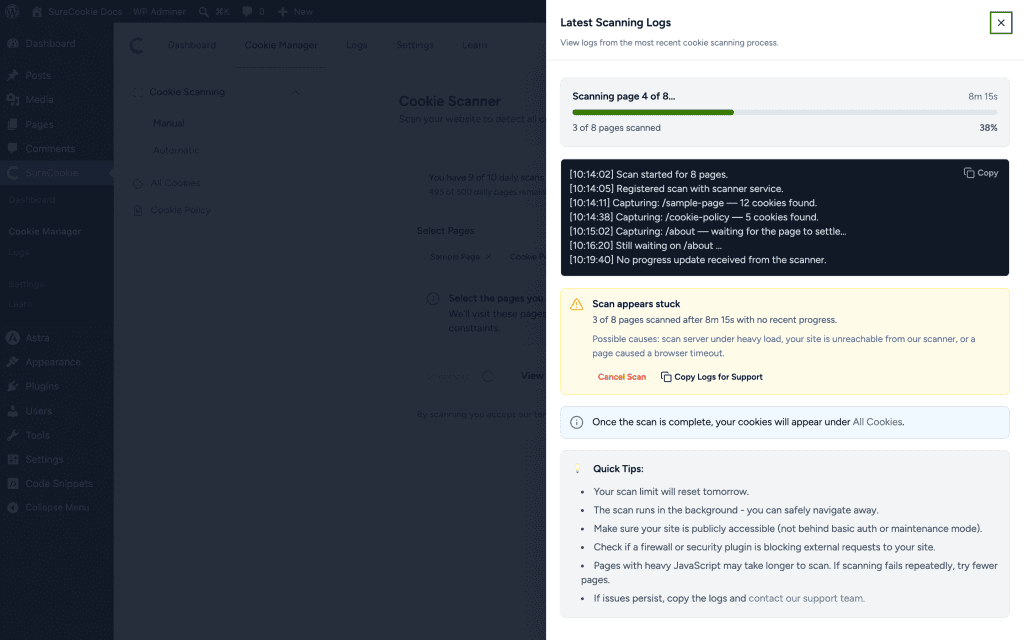
When the Latest Scanning Logs drawer detects no progress for about five minutes, it shows a Scan appears stuck warning with the message No progress detected after [time] and lists possible causes: the scan server is under heavy load, your site is unreachable from our scanner, or a page caused a browser timeout.
Here’s how to clear it.
The progress bar can appear frozen even after the scan already finished and saved your cookies. This is the single most common “stuck” report, so check whether your cookies are already there before doing anything else.
- Refresh the Cookie Manager page.
- Open the All Cookies list to check whether your detected cookies are already there.
- Clear your browser cache and reload.
- Clear any server-side or page cache and reload again.
Note: If you see a “Failed to load scanned cookies” error (common on staging sites), it’s usually a display problem, not a failed scan. The scan often completed and saved your cookies in the background, so refresh Cookie Manager and check the All Cookies list before retrying. On staging sites, scanning fewer pages can also help.
If the scan is genuinely stalled, cancel it and try a smaller, lighter run.
- Click Cancel Scan in the drawer (or Cancel Stuck Scan on the scanner page).
- Reduce the number of pages selected.
- Click Start Scan again.
The scan runs in the background, so you can safely navigate away while it works. A scan can run up to 30 minutes before it’s considered timed out.
Other causes worth ruling out:
- A page caused a browser timeout – Pages with heavy JavaScript take longer and can time out. Exclude unusually heavy pages and scan fewer at once.
- Your hosting server is throttling or timing out – Ask your host whether PHP execution time, memory, or outbound-request limits are constraining background tasks, and whether a server-level firewall is blocking our scanner. If repeated scans stall only on this host and every other check passes, switching hosting has resolved persistent stuck scans in some cases.
- The scan server is under temporary load – Wait a few minutes and run the scan again.
Scan Won’t Start or Fails to Connect (HTTP 422 / Registration Errors)
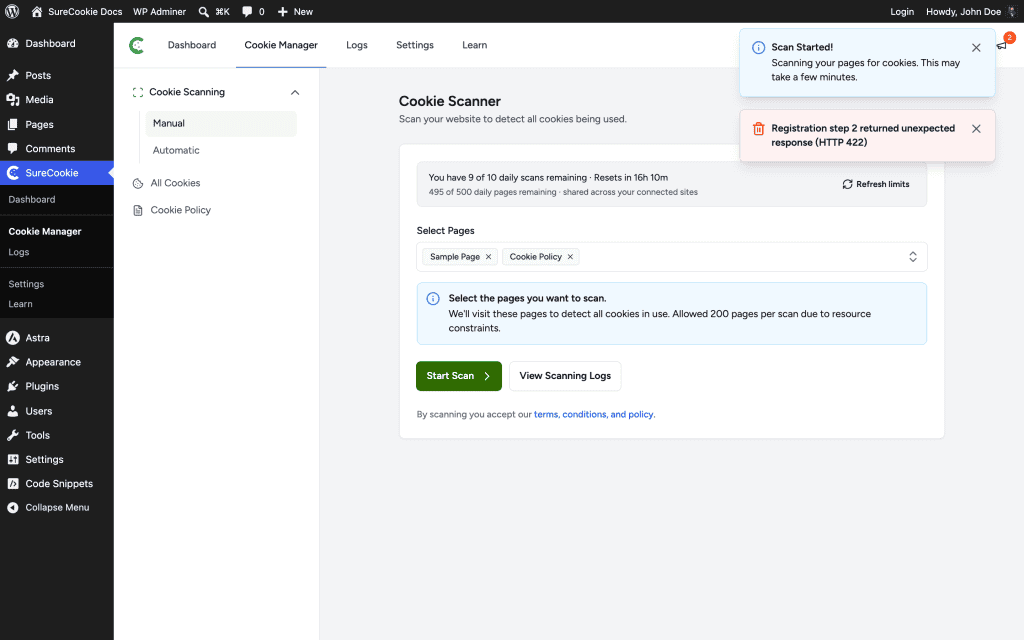
Before your first scan, SureCookie performs a one-time Connect step that verifies you own the domain. Our servers ask your site to serve a verification token over a public URL. If that handshake fails, the scan never starts and you’ll see a registration error such as Registration step 2 returned unexpected response (HTTP 422). The Connect step runs once per domain, and scans do not update automatically, so re-run a scan manually whenever you add pages or scripts.
First, open Cookie Manager and check the All Cookies list to confirm the scan didn’t already complete in the background. The UI sometimes reports an error after a successful scan. If your cookies are already there, you’re done.
If they aren’t, an HTTP 422 means our scanner couldn’t verify ownership of your domain, usually because something on your site blocked the verification request. Work through these in order, re-enabling each protection afterward.
- Temporarily disable security and firewall plugins (for example Wordfence or iThemes Security), run the scan again, then re-enable them once it succeeds. These commonly block the scanner’s verification request.
- Pause your CDN or proxy (such as Cloudflare), retry the scan, then re-enable it afterward.
- Disable Maintenance Mode or Coming Soon mode while you scan.
- Deactivate and reactivate the SureCookie plugin, then start the scan again.
A few related cases:
- HTTP 429 (rate limited) – Too many scan retries in a short period. Wait 15 to 30 minutes before trying again; the limit clears on its own.
- “Registration step 1 failed” or “Registration step 2 failed” with a network error – Our servers couldn’t reach your site at all. Recheck the prerequisites above, especially public accessibility, SSL, and REST API access.
- The domain is already registered – Each domain completes the Connect step separately, and a domain can only be registered once. If you moved the site or reinstalled, contact support to reset the registration.
Scans or Commands Fail Under WP-CLI
If any WP-CLI command fails with a filesystem or FTP-credentials fatal error, WordPress is auto-detecting FTP as the filesystem method in the CLI context. This is generic WordPress filesystem-detection behavior in the CLI context, not specific to SureCookie.
As a workaround, add the following line to your wp-config.php:
define( 'FS_METHOD', 'direct' );This forces direct filesystem access and bypasses the FTP auto-detection that triggers the fatal error.
Daily Scan Limits
If a scan stops partway and you see Scanned [X] of [Y] pages, followed by a note that your daily page budget is used up and the remaining pages will scan after it resets, you’ve hit a quota rather than an error. There is nothing to troubleshoot. The remaining pages scan automatically after the limit resets.
The scanner shows your remaining allowance at the top of the page (You have [X] of [Y] daily scans remaining and Resets in [time]) on every plan.
- Free plan – Scans up to 5 pages per scan.
- Daily page budget – The page allowance is shared across all sites connected to the same license. When it’s exhausted you’ll see Daily Limit Reached, and your credits refresh automatically the next day.
To scan more pages, click Upgrade to Pro or Get the Scan Booster add-on on the scanner page. If your limits look out of date, click Refresh limits.
When to Contact Support
If you’ve worked through the prerequisites and the steps above and the scan still won’t run, send us the scan logs so we can investigate.
- Open the Latest Scanning Logs drawer.
- Click Copy Logs for Support.
- Include the copied logs in your message.
To help us resolve it faster, also tell us:
- Your site URL, and whether it’s a live or staging site.
- Your hosting provider.
- The exact error message or HTTP status code you saw.
- Which fixes you’ve already tried.
If you’re comfortable, you can offer temporary WordPress admin access in your first message. We often need it to investigate HTTP 422 verification failures.
We don't respond to the article feedback, we use it to improve our support content.