
- SureCookie Installation Guide
- Installing SureCookie Pro
- Updating SureCookie
- How to Set Up SureCookie: Onboarding Wizard Guide
- SureCookie Dashboard Overview
- Connecting Your Site to SureCookie (Scanner Setup)
- Using SureCookie on Multiple Sites
- Uninstalling SureCookie & Data Cleanup
- Preferences Settings (Menu, Branding, Analytics)
- Re-Consent
- Understanding SureCookie Logs
- How to Set Up Geographic Targeting
- Resource Blocking
- Setting Up Google Consent Mode v2
- Consent Models Explained (Opt-in vs Opt-out)
- Exporting Consent Logs (PDF Proof + CSV)
- Consent & Data Settings (Duration, Retention, Renew)
- Consent Forwarding Across a Multisite Network
- Resource / Script Blocking (Add Embeds + Fixes)
Connecting AI Assistants (MCP) to SureCookie
SureCookie can be managed by your AI assistant. Through MCP (Model Context Protocol, an open standard for connecting AI clients to tools), assistants like Claude, ChatGPT, and Cursor can read and change your SureCookie configuration for you: update banner settings, run a cookie scan, recategorize cookies, or pull consent-log summaries, all from a chat.
You’ll find the setup at SureCookie → Settings → MCP.
What Your Assistant Can Do
Once connected, an AI client gets a set of SureCookie abilities:
- Manage settings – Read or update banner, blocking, and consent settings.
- Run the scanner – Start a scan, check its status, read its logs, or cancel it.
- Manage cookies – List scanned and custom cookies, add or edit custom ones, and recategorize.
- Manage categories – List, create, or edit cookie categories.
- Query consent logs – Filter and summarize consent records (these contain personal data, so connect only clients you trust).
Ask things like “turn on the cookie banner,” “run a scan and tell me what it found,” or “how many visitors declined this week?”
Requirements
- WordPress 6.9 or later – MCP relies on the WordPress Abilities API.
- The MCP Adapter plugin – WordPress’s official adapter that exposes abilities over MCP. If it’s missing, the MCP screen shows a notice with a Download from GitHub link.
- An admin account over HTTPS – Connections authenticate as a real user with that user’s permissions.
Step 1: Enable MCP
- Go to SureCookie → Settings → MCP.
- Turn on Enable MCP.
- Click Save. The MCP endpoint becomes active only after you save.
When the toggle is off, no abilities are registered and AI clients can’t connect, so this switch is also your master off-button.
Step 2: Create an Application Password
AI clients authenticate with a WordPress Application Password, not your login password.
- On the MCP screen, click Open Application Passwords (it takes you to your profile).
- Create a new application password named for the client (for example, “Claude Desktop”).
- Copy it somewhere safe; WordPress shows it only once.
Step 3: Add the Connection to Your AI Client
The MCP screen generates a ready-to-copy configuration for each client, with your site’s endpoint and username filled in.
- Pick your client’s tab: Claude Desktop (
claude_desktop_config.json), Claude Code (.mcp.json), Cursor (.cursor/mcp.json), or VS Code (.vscode/mcp.json). - Click Copy JSON config and paste it into that client’s configuration file.
- Replace
your-application-passwordin the JSON with the password from Step 2. - For ChatGPT, go to Settings → Connectors → Add Connector, paste the endpoint URL, and use your WordPress username with the Application Password.
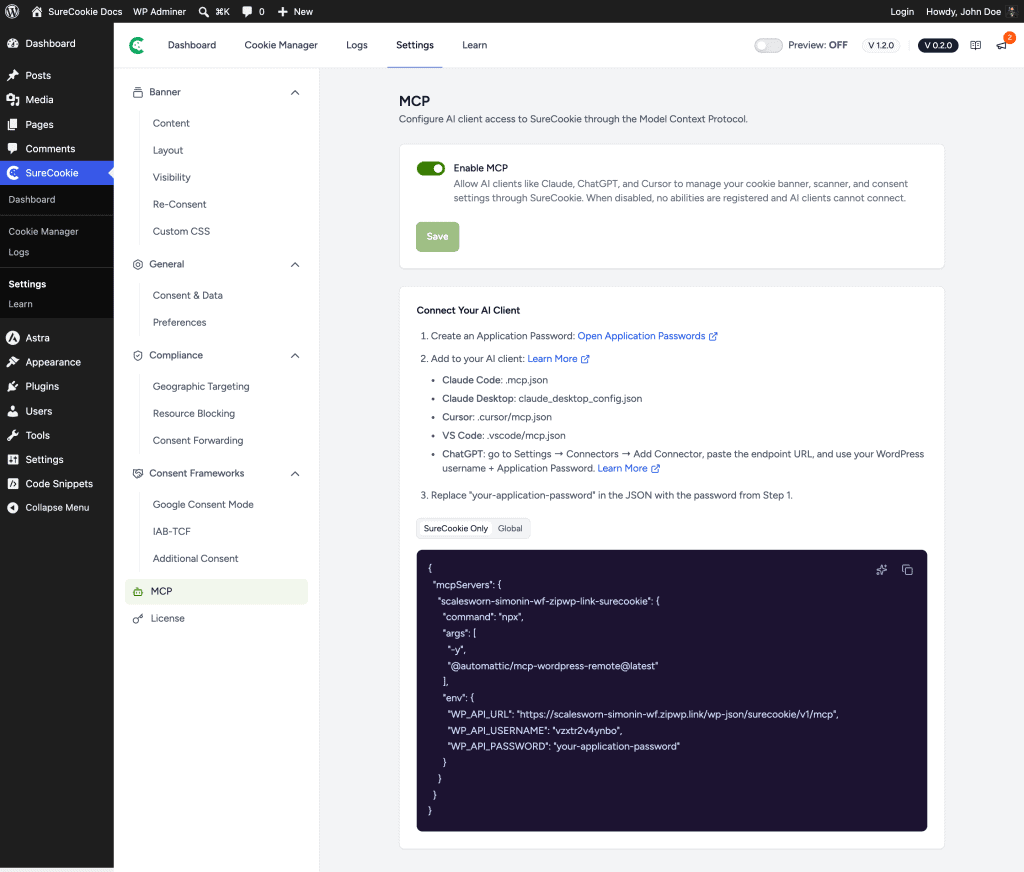
SureCookie Only vs Global
The configuration has two scopes:
- SureCookie Only – The assistant connects to SureCookie’s own MCP server and sees only SureCookie abilities. The safer default.
- Global – The assistant connects to the MCP Adapter’s site-wide server, which exposes abilities from every plugin that registers them, useful if you manage more of your site through AI.
Keep It Secure
Important: A connected AI client acts with the permissions of the WordPress user behind the Application Password, and consent logs include visitor data. Connect only clients you trust, use a dedicated Application Password per client, and revoke a password from your profile the moment a client no longer needs access. Turning off Enable MCP cuts off all clients at once.
Troubleshooting
- “MCP Adapter plugin not detected” – Install the adapter from the Download from GitHub link on the screen, activate it, and reload.
- “WordPress Abilities API not available” – MCP needs WordPress 6.9 or later. Update WordPress.
- The client can’t connect – Make sure you clicked Save after enabling (the endpoint activates on save), the JSON’s password placeholder was replaced, and your site is reachable over HTTPS.
- Authentication fails – Application Passwords may be disabled on your site or blocked by a security plugin. Confirm they’re available on your profile page.
Next Steps
Once connected, try asking your assistant to run a scan and review the results, then see AI Cookie Classification for how the detected cookies get categorized.
We don't respond to the article feedback, we use it to improve our support content.