
- SureCookie Installation Guide
- Installing SureCookie Pro
- Updating SureCookie
- How to Set Up SureCookie: Onboarding Wizard Guide
- SureCookie Dashboard Overview
- Connecting Your Site to SureCookie (Scanner Setup)
- Using SureCookie on Multiple Sites
- Uninstalling SureCookie & Data Cleanup
- Preferences Settings (Menu, Branding, Analytics)
- Re-Consent
- Understanding SureCookie Logs
- How to Set Up Geographic Targeting
- Resource Blocking
- Setting Up Google Consent Mode v2
- Consent Models Explained (Opt-in vs Opt-out)
- Exporting Consent Logs (PDF Proof + CSV)
- Consent & Data Settings (Duration, Retention, Renew)
- Consent Forwarding Across a Multisite Network
- Resource / Script Blocking (Add Embeds + Fixes)
AI Cookie Classification
A single scan can turn up dozens of cookies with cryptic names like _ga, _fbp, or pll_language. Figuring out what each one does, and which consent category it belongs in, is exactly the kind of manual research nobody should have to do. SureCookie does it for you: when the scanner finds cookies, they’re identified and categorized automatically, with names, providers, and privacy-compliant descriptions filled in where known.
Classification is powered by your SureCookie account connection, so connect your site first. See Connecting Your Site to SureCookie (Scanner Setup).
How Classification Works
SureCookie layers several techniques so most cookies arrive categorized:
- A continuously improving detection database – Known cookies and the services that set them are matched against a database that improves as more sites scan.
- Recognizable name patterns – Widely used cookies follow conventions, and SureCookie recognizes them instantly:
_gaand_gidare analytics,_fbpis marketing,PHPSESSIDand WooCommerce session cookies are essential, and language cookies likepll_languageare functional. Each match carries a confidence score. - AI classification – Cookies the database and patterns can’t place are classified with AI, which also generates privacy-compliant descriptions and smart compliance recommendations.
Where You See It
After a scan, open SureCookie → Cookie Manager → All Cookies. Each detected cookie appears with its Category, Provider, Domain, and description already assigned where known, marked with the Scanned type.
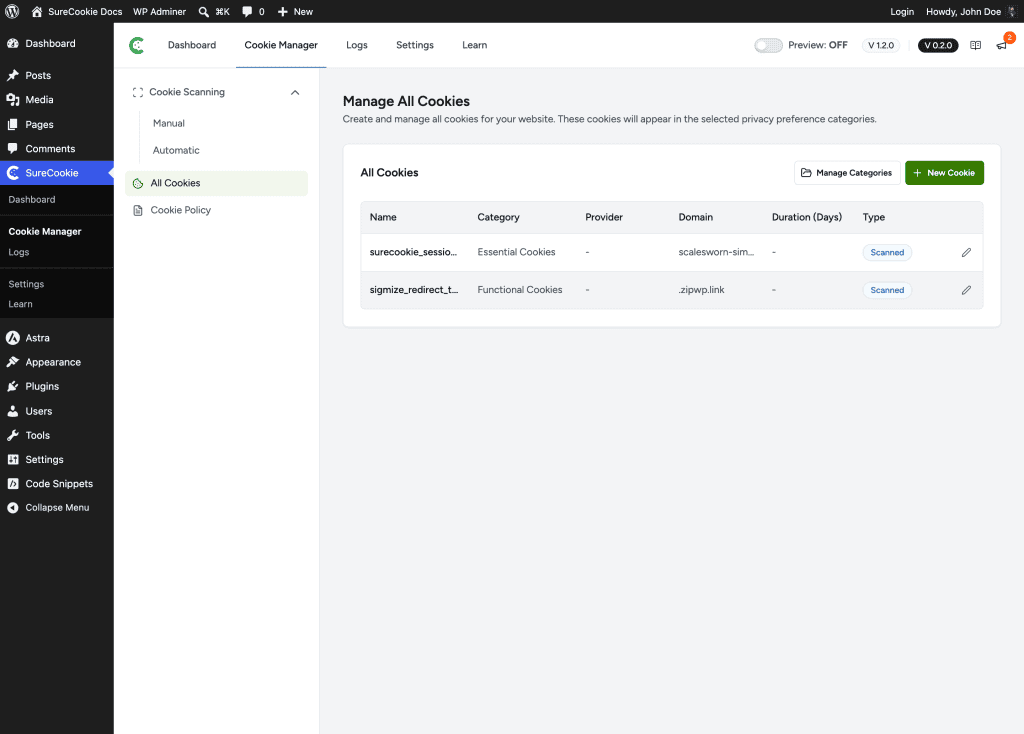
Everything is editable. Click the edit icon on any cookie to change its category or details, and your choice sticks.
Uncategorized Cookies
When SureCookie isn’t confident about a cookie, it lands in the Uncategorized Cookies category instead of being guessed into the wrong place. Review these and assign the right category, since uncategorized cookies can’t be gated by a category the visitor accepts or declines.
Classification in Automatic Scanning
With Automatic Scanning, classification decides what happens to newly detected cookies between scans. Each new cookie gets a suggested category with a confidence score, and your When New Cookies Are Found setting (a SureCookie Pro feature) decides what happens next:
- Review Before Publishing – Every new cookie waits for your one-click review.
- Auto-Apply Trusted Cookies – High-confidence categories are applied automatically, and the rest are held for review.
See Automatic (Scheduled) Scanning for the full feature.
Review What It Suggests
Classification gives you an accurate starting point, not a final answer.
Important: Always review the assigned categories, especially anything marked Essential. Your banner blocks and discloses cookies by category, so a marketing cookie misfiled under Essential would load before consent. You’re responsible for the final categorization.
What Data Is Used
Classification works on cookie metadata, not visitor data. During a scan, your page URLs are sent to the scanning service, and detected cookie details (names, domains, durations) are used to categorize them and improve detection accuracy across SureCookie installations. Your visitors’ consent choices and personal data are not part of classification.
Troubleshooting
- Cookies came back uncategorized – Assign them manually from All Cookies, and make sure your site is connected so cloud classification runs. See Connecting Your Site to SureCookie.
- A cookie got the wrong category – Click its edit icon and change the category. Your correction is kept.
- A cookie you expected isn’t listed at all – That’s detection, not classification. See Why Some Cookies Aren’t Detected.
Next Steps
Run a scan and review the results under All Cookies: see Connecting Your Site to SureCookie (Scanner Setup). To keep classification working on new cookies over time, turn on Automatic (Scheduled) Scanning.
We don't respond to the article feedback, we use it to improve our support content.