
- SureCookie Installation Guide
- Installing SureCookie Pro
- Updating SureCookie
- How to Set Up SureCookie: Onboarding Wizard Guide
- SureCookie Dashboard Overview
- Connecting Your Site to SureCookie (Scanner Setup)
- Using SureCookie on Multiple Sites
- Uninstalling SureCookie & Data Cleanup
- Preferences Settings (Menu, Branding, Analytics)
- Re-Consent
- Understanding SureCookie Logs
- How to Set Up Geographic Targeting
- Resource Blocking
- Setting Up Google Consent Mode v2
- Consent Models Explained (Opt-in vs Opt-out)
- Exporting Consent Logs (PDF Proof + CSV)
- Consent & Data Settings (Duration, Retention, Renew)
- Consent Forwarding Across a Multisite Network
- Resource / Script Blocking (Add Embeds + Fixes)
- Is SureCookie GDPR Compliant? (Overview)
- CCPA / CPRA Compliance with SureCookie
Resource / Script Blocking (Add Embeds + Fixes)
A cookie banner asks visitors for permission. Resource Blocking is what makes that permission mean something: it holds non-essential scripts and embedded content, analytics, ad pixels, tag managers, and embeds like YouTube, Google Maps, and Vimeo, until the visitor agrees. Without it, those trackers can fire before anyone has chosen.
You’ll find it at SureCookie → Settings → Compliance → Resource Blocking.
What Resource Blocking Does
- It prevents non-essential scripts and embeds from loading until the visitor consents.
- Each resource belongs to a consent category (Essential, Functional, Analytics, or Marketing) and unblocks only when the visitor accepts that category.
- It covers a built-in list of supported services, plus anything your cookie scan detects on your own pages.
Turn On Blocking
- Go to SureCookie → Settings → Compliance → Resource Blocking.
- Turn on Enable Script and Content Blocking.
- Click Save.
With blocking off, your banner still asks for consent, but non-essential scripts may run before a choice is made. Turn it on for real enforcement.
Detected Resources
Once blocking is on, the Detected Resources list shows what SureCookie found on your site, in four columns:
- Type – Script or Iframe (an embed).
- Resource – the service name and its domain.
- Category – the consent category it belongs to. This is set by SureCookie’s detection and shown here for reference.
- Block – toggle blocking on or off for that specific resource.
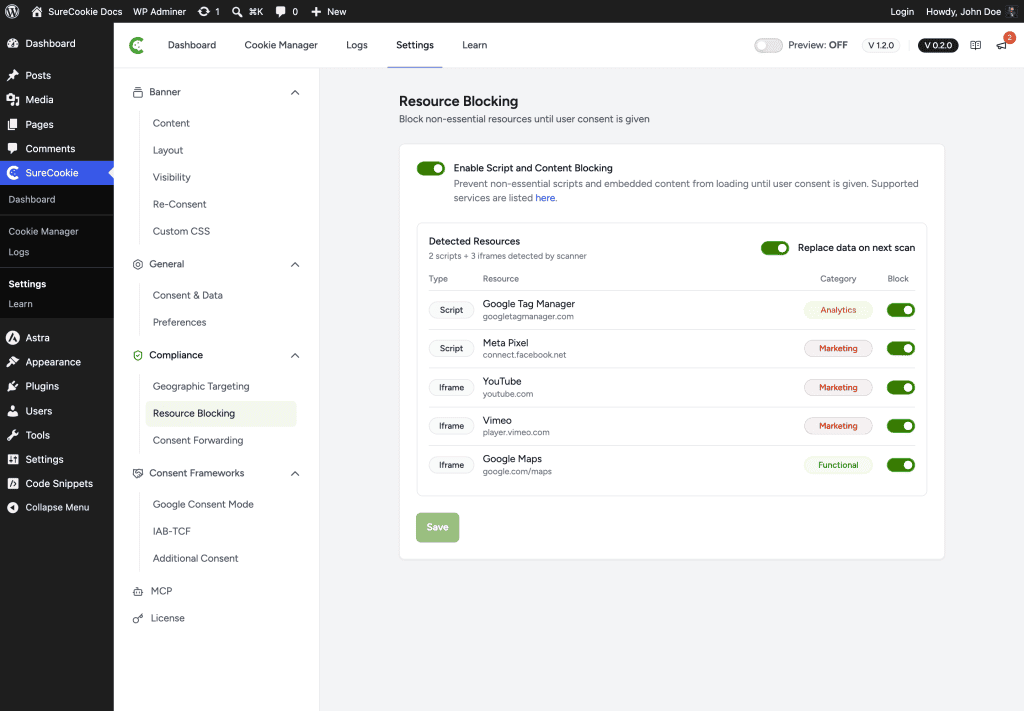
The Replace data on next scan toggle refreshes this list with fresh results the next time a scan runs.
Adding Embeds (YouTube, Maps, Vimeo, and More)
You don’t add resources by hand. There are two ways an embed gets covered:
- Supported services are blocked automatically once blocking is on, even before you scan. The screen links to the full list of supported services.
- To surface a specific embed or script in the Detected Resources list, run a scan that includes the page it appears on, under SureCookie → Cookie Manager → Manual. Newly detected items show up with their Type, Category, and a Block toggle.
Video and map embeds are grouped under a consent category (YouTube and Vimeo are usually Marketing; Google Maps is usually Functional) and load once the visitor accepts that category.
Allowing a Resource
Each row’s Block toggle decides whether that resource is gated behind consent.
- Leave it on to keep the resource blocked until consent. This is the right choice for anything non-essential.
- Turn it off only if you consider a resource essential and want it to load without consent. That’s a compliance decision, so use it deliberately.
Google Consent Mode scripts are a special case: when Consent Mode is enabled, SureCookie lets Google’s scripts run and manages them through Consent Mode, so they show an explanatory note instead of a Block toggle.
Common Fixes
- An embed stays blocked after consent – It belongs to a category the visitor didn’t accept. Check its Category; the visitor must accept that category. See Embeds Blocked After Consent (YouTube, Maps, Vimeo).
- A resource isn’t in the Detected Resources list – Run a scan on the page where it loads so it’s detected. Supported services are still blocked even when they aren’t listed.
- A script still runs before consent – Confirm Enable Script and Content Blocking is on, then clear your page and CDN caches so the blocked version of the page is served.
- Changes don’t take effect – Clear caches, and re-scan if you changed the page’s content.
- An embed won’t load even after accepting its category – The embed may be injected by a separate script in a different category. Make sure the visitor also accepts that category.
Next Steps
For step-by-step help when an embed stays blocked, see Embeds Blocked After Consent (YouTube, Maps, Vimeo). To forward consent state to Google’s tags, see Setting Up Google Consent Mode v2.
We don't respond to the article feedback, we use it to improve our support content.