
- SureCookie Installation Guide
- Installing SureCookie Pro
- Updating SureCookie
- How to Set Up SureCookie: Onboarding Wizard Guide
- SureCookie Dashboard Overview
- Connecting Your Site to SureCookie (Scanner Setup)
- Using SureCookie on Multiple Sites
- Uninstalling SureCookie & Data Cleanup
- Preferences Settings (Menu, Branding, Analytics)
- Re-Consent
- Understanding SureCookie Logs
- How to Set Up Geographic Targeting
- Resource Blocking
- Setting Up Google Consent Mode v2
- Consent Models Explained (Opt-in vs Opt-out)
- Exporting Consent Logs (PDF Proof + CSV)
- Consent & Data Settings (Duration, Retention, Renew)
- Consent Forwarding Across a Multisite Network
- Resource / Script Blocking (Add Embeds + Fixes)
- Is SureCookie GDPR Compliant? (Overview)
- CCPA / CPRA Compliance with SureCookie
Consent Forwarding Across a Multisite Network
On a WordPress Multisite network, a visitor who consents on one site would normally be asked again on every sibling site. Consent Forwarding fixes that. It shares a visitor’s consent choice across the sites you choose, so they consent once and it carries across the network.
Consent Forwarding is a SureCookie Pro feature, and it requires a WordPress Multisite network. You’ll find it at SureCookie → Settings → Compliance → Consent Forwarding.
What Consent Forwarding Does
When a visitor makes a choice on one site in your network, SureCookie forwards that choice to the other sites you’ve selected. Those sites then treat the visitor as already having consented, so the banner doesn’t reappear as they move between your sites. You stay in control of which sites receive consent and what visitors are told about it.
Requirements
- SureCookie Pro.
- A WordPress Multisite network with more than one site. On a single-site install, the screen shows a Multisite Network Required notice and the feature stays off, because there are no sibling sites to forward consent to.
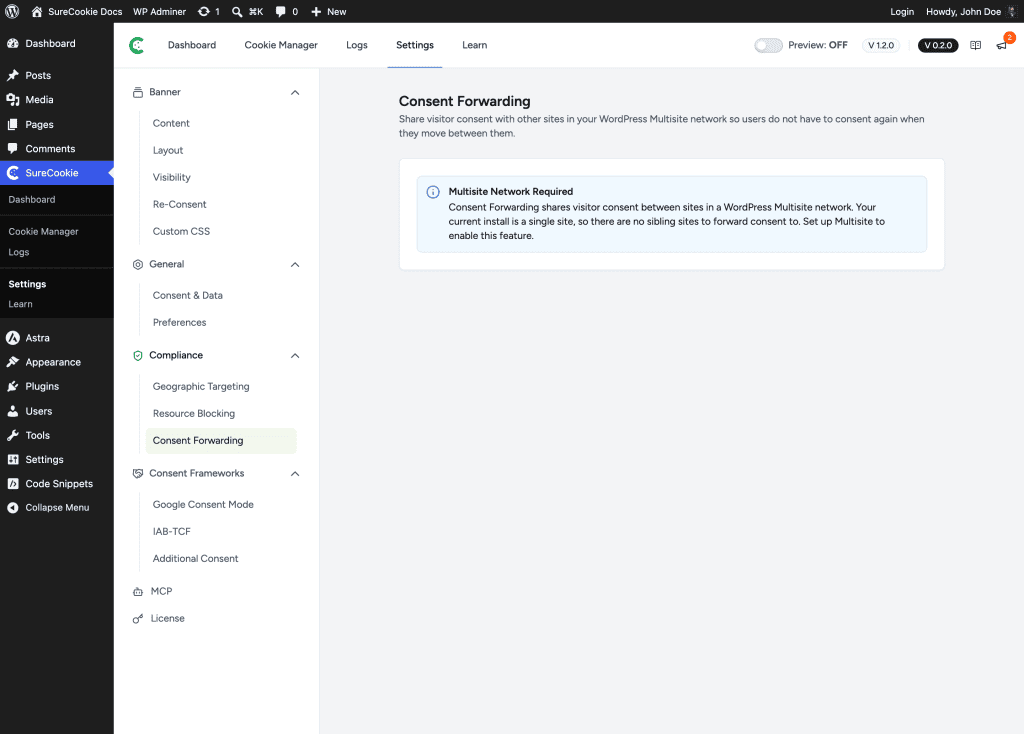
Configure Consent Forwarding
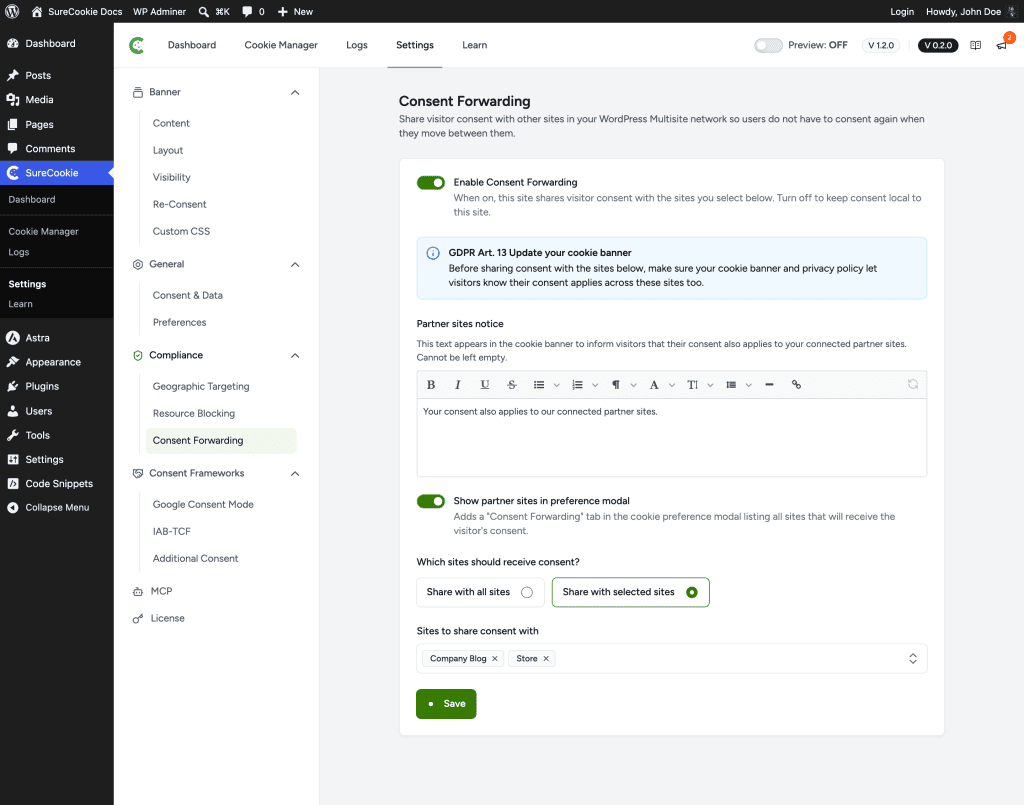
On a Multisite network, the full configuration appears.
- Go to SureCookie → Settings → Compliance → Consent Forwarding.
- Turn on Enable Consent Forwarding.
- Set the options below, then click Save.
Enable Consent Forwarding
Turns sharing on. When it’s off, consent stays local to each site.
Which Sites Receive Consent
Choose the scope under Which sites should receive consent?
- Share with all sites – Forward consent to every site in the network.
- Share with selected sites – Pick specific sites under Sites to share consent with. If your network has no other subsites yet, add one in Network Admin → Sites → Add New.
Partner Sites Notice
The Partner sites notice is the text that appears on your cookie banner to tell visitors their consent also applies to your connected partner sites. It can’t be left empty; the default is “Your consent also applies to our connected partner sites.” Edit it to match your wording.
Show Partner Sites in the Preference Modal
When on, this adds a Consent Forwarding tab to the cookie preference modal that lists every site which will receive the visitor’s consent, so visitors can see exactly where their choice applies.
Stay Compliant (GDPR Article 13)
Because you’re sharing consent across sites, you need to tell visitors up front. SureCookie shows a GDPR Art. 13 reminder on this screen: before forwarding consent, make sure your cookie banner and privacy policy disclose that consent applies across these sites. Turning on the Partner Sites Notice and the preference-modal tab helps you meet that obligation.
Important: Disclosure requirements depend on your jurisdiction. Confirm your banner and privacy-policy wording with a qualified professional.
How It Works
Consent is shared across the network’s sites through WordPress Multisite and keyed to the visitor’s session, so the same choice applies without re-prompting. It works only within a single Multisite network. It does not sync consent between separate, unrelated domains.
Troubleshooting
- You see “Multisite Network Required” – The feature needs a WordPress Multisite network. A single-site install has no sibling sites to forward consent to.
- There are no sites to select – Your network has no other subsites yet. Add one in Network Admin → Sites → Add New, then return to this screen.
- Visitors still re-consent on another site – Confirm Consent Forwarding is on, the target site is included (via “all sites” or the selected list), and SureCookie is active on both sites.
Next Steps
For the bigger picture of running SureCookie across sites, see Using SureCookie on Multiple Sites. To understand what visitors are agreeing to, see Consent Models Explained (Opt-in vs Opt-out).
We don't respond to the article feedback, we use it to improve our support content.