
- SureCookie Installation Guide
- Installing SureCookie Pro
- Updating SureCookie
- How to Set Up SureCookie: Onboarding Wizard Guide
- SureCookie Dashboard Overview
- Connecting Your Site to SureCookie (Scanner Setup)
- Using SureCookie on Multiple Sites
- Uninstalling SureCookie & Data Cleanup
- Preferences Settings (Menu, Branding, Analytics)
- Re-Consent
- Understanding SureCookie Logs
- How to Set Up Geographic Targeting
- Resource Blocking
- Setting Up Google Consent Mode v2
- Consent Models Explained (Opt-in vs Opt-out)
- Exporting Consent Logs (PDF Proof + CSV)
- Consent & Data Settings (Duration, Retention, Renew)
- Consent Forwarding Across a Multisite Network
- Resource / Script Blocking (Add Embeds + Fixes)
- Is SureCookie GDPR Compliant? (Overview)
- CCPA / CPRA Compliance with SureCookie
Consent Models Explained (Opt-in vs Opt-out)
Privacy laws take two broad approaches to cookie consent: opt-in and opt-out. The model you use decides one important thing: whether non-essential cookies are allowed to run before a visitor makes a choice. It also shapes what your banner asks people to do.
In short, opt-in means “ask first, load nothing extra until they agree,” and opt-out means “load by default, but give people a clear way to say no.” This article explains both, which laws map to each, how they change your banner, and how SureCookie applies them.
Opt-in (GDPR)
Opt-in is the stricter model, required by the EU and EEA’s GDPR and by the UK.
- Non-essential cookies (analytics, marketing, and similar) stay blocked until the visitor explicitly agrees.
- On a first visit, nothing non-essential runs until the visitor chooses.
- The banner gives full control: Accept All, Only Essential, Preferences (granular, per-category choices), and Decline.
- Declining means only essential cookies run.
This is SureCookie’s default model, and it’s a safe baseline anywhere.
Opt-out (CCPA/CPRA)
Opt-out is used by laws such as California’s CCPA/CPRA.
- Non-essential cookies may run by default, and the visitor can opt out at any time.
- The banner focuses on giving people a clear way to say no, with Accept and Decline.
- Because nothing is blocked up front, there’s no need for a granular preferences step, so the banner doesn’t show the Preferences modal.
How the Banner Differs by Model
| Behavior | Opt-in (GDPR) | Opt-out (CCPA/CPRA) |
|---|---|---|
| Non-essential cookies before a choice | Blocked | Allowed |
| Banner buttons | Accept All, Only Essential, Preferences, Decline | Accept, Decline |
| Granular preferences modal | Shown | Not shown |
| Typically required for | EU, EEA, UK | California, and similar US states |
How SureCookie Applies a Consent Model
By default, SureCookie uses the opt-in model for every visitor, the safest, GDPR-aligned choice.
To serve different regions differently, use Geographic Targeting, a SureCookie Pro feature. It lets you show the banner and apply the right consent experience based on each visitor’s location, for example opt-in for EU visitors and opt-out for California visitors. Location is detected using GeoLite2 data from MaxMind.
- Go to SureCookie → Settings → Compliance → Geographic Targeting.
- Keep Show to all visitors worldwide to apply one experience everywhere (the free option).
- Choose Show only where required by law to target specific regions with tailored consent experiences (Pro).
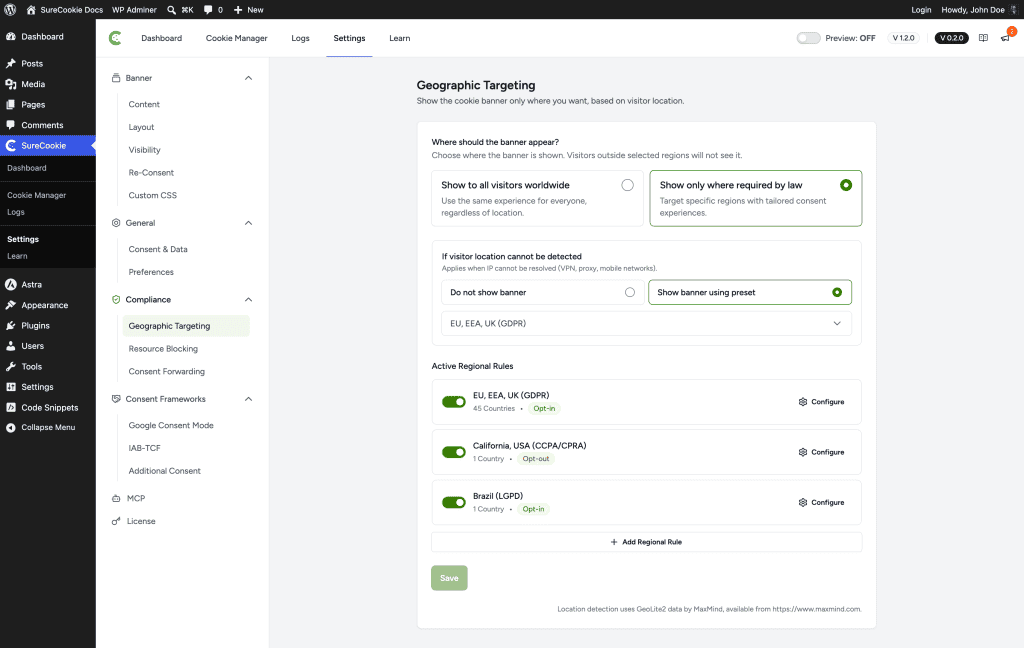
SureCookie also reports the active model to the WordPress Consent API, so other consent-aware plugins on your site behave consistently.
Which Model Should You Use?
- Serving EU, EEA, or UK visitors? Use opt-in. It’s the default and the strictest, safest baseline.
- Audience mainly in opt-out regions like California? An opt-out model can fit, though opt-in is always acceptable as the stricter choice.
- Serving both? Use Geographic Targeting (Pro) to apply each region’s model automatically, so every visitor sees the model their law expects.
Important: The right model depends on where your visitors are and which laws apply to you. SureCookie provides the technical controls; confirm your legal obligations with a qualified professional before deciding.
Next Steps
To adjust the banner text and buttons visitors see, see Customizing Banner Content. To pass consent signals to Google, see Setting Up Google Consent Mode v2.
We don't respond to the article feedback, we use it to improve our support content.