
- SureCookie Installation Guide
- Installing SureCookie Pro
- Updating SureCookie
- How to Set Up SureCookie: Onboarding Wizard Guide
- SureCookie Dashboard Overview
- Connecting Your Site to SureCookie (Scanner Setup)
- Using SureCookie on Multiple Sites
- Uninstalling SureCookie & Data Cleanup
- Preferences Settings (Menu, Branding, Analytics)
- Re-Consent
- Understanding SureCookie Logs
- How to Set Up Geographic Targeting
- Resource Blocking
- Setting Up Google Consent Mode v2
- Consent Models Explained (Opt-in vs Opt-out)
- Exporting Consent Logs (PDF Proof + CSV)
- Consent & Data Settings (Duration, Retention, Renew)
- Consent Forwarding Across a Multisite Network
- Resource / Script Blocking (Add Embeds + Fixes)
Automatic (Scheduled) Scanning
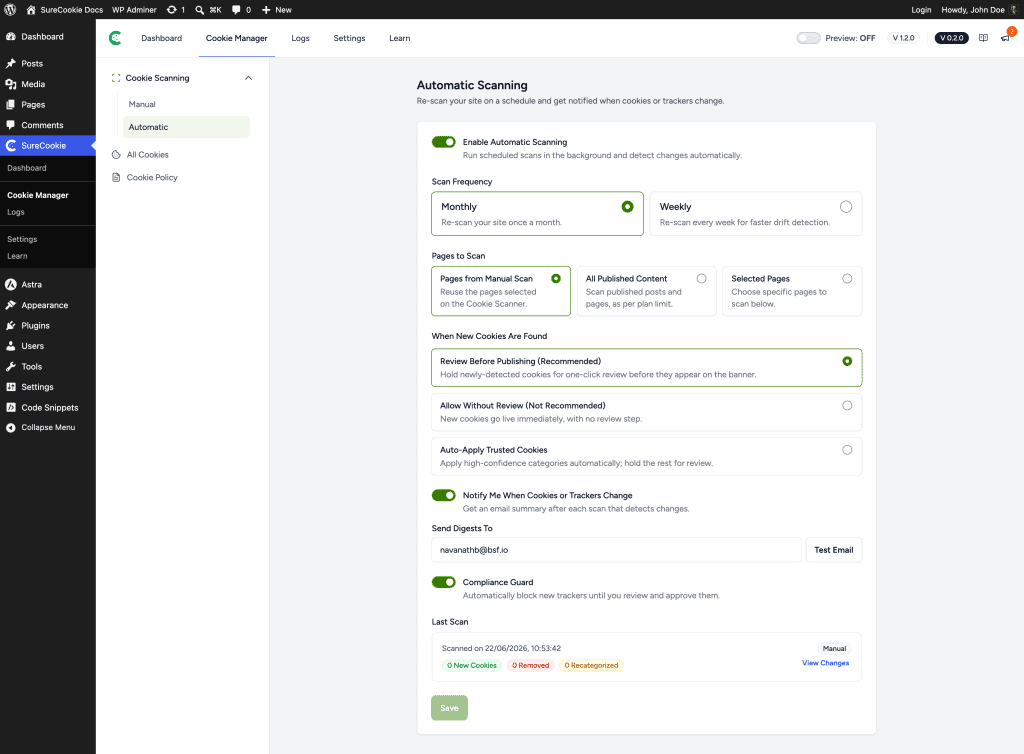
Websites change. A new plugin, embed, or marketing tag can quietly add cookies and trackers your consent banner doesn’t know about yet, and a manual scan is easy to forget. Automatic Scanning closes that gap: it re-scans your site on a schedule in the background, compares the results to your current cookie list, and flags anything that changed.
On SureCookie Pro, it goes further and can hold newly detected cookies for review, email you a summary, and block brand-new trackers until you approve them, so drift never reaches your visitors unreviewed.
Automatic Scanning is available on all plans. Monthly scanning is free; weekly scanning, the review options, email digests, and Compliance Guard are SureCookie Pro features. You’ll find it at SureCookie → Cookie Manager → Automatic.
What It Does
Automatic Scanning uses the same browser-based scanner as a manual scan, just on a timer.
- Runs scheduled scans in the background through WordPress cron.
- Compares each scan to your current cookie list and reports what’s new, removed, or recategorized.
- On Pro, decides what happens to new cookies (review, auto-apply, or publish), emails a digest, and can block new trackers until approved.
Because it reuses the scanner, automatic scans draw from the same daily page budget shared across your connected sites.
Turn On Automatic Scanning
- Go to SureCookie → Cookie Manager → Automatic.
- Toggle Enable Automatic Scanning on.
- Set the options below, then click Save.
Choose a Scan Frequency
Pick how often SureCookie re-scans, based on how frequently your site changes.
- Monthly – Re-scan your site once a month. Available on all plans.
- Weekly – Re-scan every week for faster drift detection. A SureCookie Pro feature.
Choose What to Scan
The Pages to Scan setting controls the scope of each scheduled scan.
- Pages from Manual Scan – Reuse the pages you selected on the Cookie Scanner. This is the default.
- All Published Content – Scan your published posts and pages, up to your plan’s page limit.
- Selected Pages – Choose specific pages to scan.
A wider scope catches more, but uses more of your shared daily page budget.
Decide What Happens When New Cookies Are Found
This section is a SureCookie Pro feature. It controls how a newly detected cookie is handled before it reaches your banner.
- Review Before Publishing (Recommended) – Hold new cookies for one-click review before they appear on the banner. Nothing changes for visitors until you approve it.
- Allow Without Review (Not Recommended) – New cookies go live immediately, with no review step.
- Auto-Apply Trusted Cookies – Apply high-confidence categories automatically, and hold the rest for review.
Get Notified of Changes
Turn on Notify Me When Cookies or Trackers Change to receive an email summary after each scan that detects changes. Enter the address in Send Digests To, and use Test Email to confirm delivery.
Compliance Guard
Turn on Compliance Guard to automatically block newly detected trackers until you review and approve them. This stops a brand-new tracker from firing before you’ve categorized it. Compliance Guard works alongside Resource Blocking, so keep script and content blocking enabled for it to take effect.
Review What Changed
The Last Scan card shows when the most recent scan ran and a summary of New Cookies, Removed, and Recategorized counts. Click View Changes to see the details and approve anything waiting in review.
Requirements and Limits
- Your site must be connected to SureCookie, the same as manual scanning.
- WordPress cron must be running. Scheduled scans rely on it. If cron is disabled, SureCookie shows a warning and scans may not run on time. Set up a real server cron job on low-traffic sites.
- Scans share your daily page budget across all sites connected to the same license.
Troubleshooting
- The scheduled scan never runs – Automatic Scanning relies on WordPress cron. On low-traffic sites, or when
DISABLE_WP_CRONis set, scans can stall. Set up a server cron job to trigger cron reliably. - New cookies aren’t being blocked – Compliance Guard only blocks new trackers when Resource Blocking is on. Enable it under SureCookie → Settings → Compliance → Resource Blocking.
- A scan reports no changes, but you added a tracker – The tracker may load only on a page the scan didn’t reach. Widen the scope or add that page, then wait for the next scan.
We don't respond to the article feedback, we use it to improve our support content.