
- SureCookie Installation Guide
- Installing SureCookie Pro
- Updating SureCookie
- How to Set Up SureCookie: Onboarding Wizard Guide
- SureCookie Dashboard Overview
- Connecting Your Site to SureCookie (Scanner Setup)
- Using SureCookie on Multiple Sites
- Uninstalling SureCookie & Data Cleanup
- Preferences Settings (Menu, Branding, Analytics)
- Re-Consent
- Understanding SureCookie Logs
- How to Set Up Geographic Targeting
- Resource Blocking
- Setting Up Google Consent Mode v2
- Consent Models Explained (Opt-in vs Opt-out)
- Exporting Consent Logs (PDF Proof + CSV)
- Consent & Data Settings (Duration, Retention, Renew)
- Consent Forwarding Across a Multisite Network
- Resource / Script Blocking (Add Embeds + Fixes)
- Is SureCookie GDPR Compliant? (Overview)
- CCPA / CPRA Compliance with SureCookie
Setting Up Google Consent Mode v2
Google Consent Mode v2 is the way your site tells Google services whether a visitor has consented, so Google Analytics, Google Ads, and Tag Manager adjust how they behave. When you turn it on, SureCookie sends these consent signals automatically based on each visitor’s banner choices.
Google requires Consent Mode v2 for any site that uses Google services with visitors in the European Economic Area (mandatory since March 2024). Setting it up keeps your Google tags compliant without extra code.
Before you begin: SureCookie sends the consent signals, but it does not install your Google tags. Your Google tags (GA4, Google Ads, Tag Manager, and so on) must already be on your site for Consent Mode to have any effect.
What Consent Mode v2 Does
Consent Mode is a signal layer between your visitors and Google. Your Google tags read the signals and decide whether to use cookies, collect analytics, or personalize ads. SureCookie sets the signals to denied by default, before your tags run, then updates them the moment a visitor accepts or declines a category on your banner.
Because the signals follow your cookie categories, make sure your banner is set up and your cookies are categorized first.
Step 1: Enable Google Consent Mode
- Go to SureCookie → Settings → Consent Frameworks → Google Consent Mode.
- Turn on Enable Google Consent Mode.
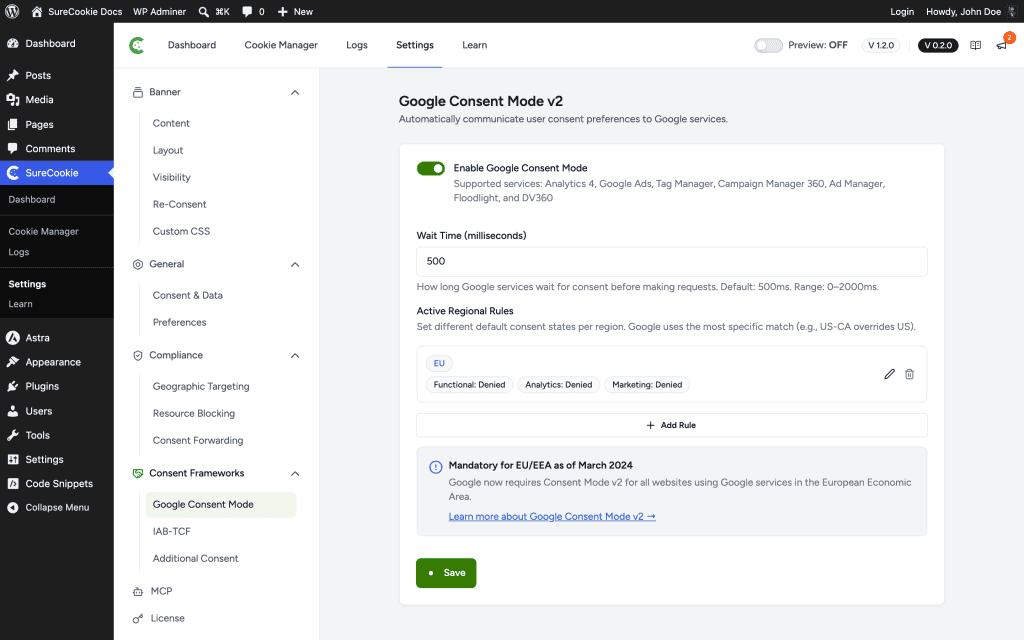
This covers the supported Google services: Analytics 4, Google Ads, Tag Manager, Campaign Manager 360, Ad Manager, Floodlight, and DV360.
Step 2: Set the Wait Time
The wait time is how long Google services pause for a consent update before sending their first requests. A longer wait gives the banner more time to report a choice; a shorter wait reduces any delay.
- In Wait Time (milliseconds), enter a value.
- Leave it at the default of 500 unless you have a reason to change it. The range is 0 to 2000.
How Consent Maps to Google Signals
SureCookie translates each visitor’s category choices into Google’s consent signals:
| SureCookie Category | Google Consent Signals |
|---|---|
| Marketing | ad_storage, ad_user_data, ad_personalization, personalization_storage |
| Analytics | analytics_storage |
| Functional | functionality_storage |
| Essential | security_storage (always granted) |
Until a visitor consents, every non-essential signal stays denied. When they accept a category, the matching signals switch to granted.
Step 3: Add Regional Default Rules
Regional rules let you set different default consent states for different parts of the world, for example denying everything by default in the EU while granting more in regions without strict consent laws. Google applies the most specific match, so a rule for US-CA overrides a rule for US. This step is optional.
- Under Active Regional Rules, click Add Rule.
- To start from a template, click a Quick Preset: EU/EEA (GDPR), California (CCPA), United Kingdom, or Brazil (LGPD). This fills in the region codes and a sensible default.
- In Region Codes, enter one or more codes separated by commas, using a two-letter country code with an optional region (for example
US,US-CA, orGB). - Under Default Consent State, set Functional, Analytics, and Marketing to Granted or Denied.
- Click Save.
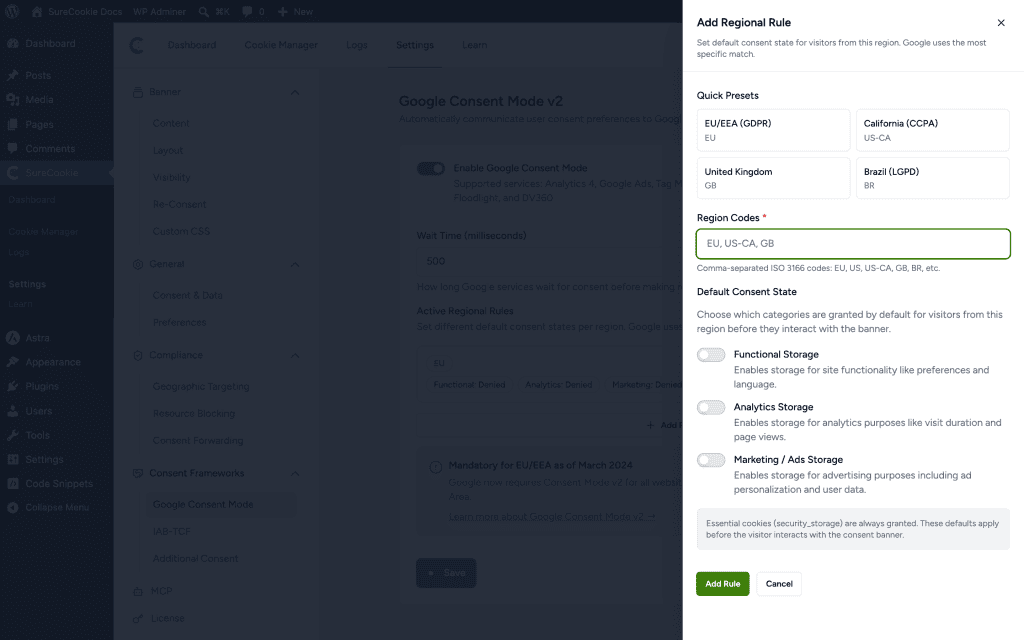
Note: Essential cookies (
security_storage) are always granted. These defaults apply before the visitor interacts with the banner. Any region without a rule falls back to the global default, which denies non-essential storage until the visitor consents.
Verifying It Works
Use Google Tag Assistant or GA4 DebugView to confirm the signals are firing.
- Consent Mode has no effect – Confirm your Google tags are actually installed and loading on the page. SureCookie only sends signals; it can’t work without the tags.
- Signals always show denied – That is expected before consent. Accept a category on the banner and check that the matching signals switch to granted.
- Visitors are tracked before consent – Make sure non-essential scripts are blocked and that the regional default denies them. Consent Mode signals work alongside script blocking, not instead of it.
We don't respond to the article feedback, we use it to improve our support content.